Conditional UI in WebAuthn. Passkey autofill
Passkeys are rapidly becoming the new standard for authentication, and users are already enjoying their smooth, password free experience. But can logging in with a passkey be even simpler? Yes – thanks to Conditional UI, a WebAuthn feature that brings passkey autofill to life without the security risks we once faced with password autocomplete.



Conditional UI in WebAuthn. Passkey autofill
Conditional UI streamlines the login flow by surfacing a user’s passkey as soon as they focus the username field. No extra clicks, no confusion – just fast, secure authentication powered by public key cryptography. In this article, we’ll look at how it works, why it’s safe, and how you can easily add it to your application.
If you are not familiar with passkeys, I recommend reading my colleague’s article, “How Passkeys Will Impact App Security and Set Us Free“. It provides an excellent introduction to how passkeys are transforming authentication.
Passkeys are no longer just a futuristic concept. They are becoming mainstream. According to the official FIDO Alliance report, nearly half of the world’s top 100 websites have already integrated passkeys. Users are increasingly aware of this technology and are enjoying its seamless authentication experience. But can it be even more user-friendly? Absolutely. Let me introduce you to the concept of Conditional UI. But first, let’s go back in time to standard password authentication.
A quick throwback: the case of autocomplete=off
Do you remember all the fuss about autocomplete for passwords?
It was discouraged because an attacker could retrieve a user’s stored password by gaining access to their computer or exploiting an XSS vulnerability. The problem occurred because the default browser behaviour is to remember user credentials. This caused the browser to store passwords. Remediation for this issue was to include the attribute autocomplete=off within the form tag.
Well, Conditional UI might seem like a pretty name for passkey autocomplete. So, should you worry about the same issue as with password autofill? The answer is no – you should not. Why?
- Passkeys use public-key cryptography.
- The application server only stores public keys, which are not secret.
- The private keys stay securely stored on the user’s device and are never exposed.
- Authentication requires explicit user interaction, such as biometric confirmation.
- The browser will only see a challenge signed with the private key, which is one-time use.
So, unlike password autocomplete, Conditional UI doesn’t expose sensitive credentials and doesn’t allow them (private keys) to be stored externally.
Connect with the author on LinkedIn!

What is Conditional UI, and how does it work?
Conditional UI is a WebAuthn API feature that dynamically adjusts the user interface based on whether a passkey is available for the user’s account or device. It ensures users see only relevant authentication options, simplifying the login experience and reducing confusion.
It works very simply:
- A user navigates to a webpage.
- They must have a WebAuthn credential (i.e., passkey credential) registered on that webpage, and the device they are using must store it.
- The user is prompted to automatically log in with their passkey when they click (focus) on the username input. No need to select alternative authentication methods.
- The rest of the flow is the same as if they had manually chosen to log in with a passkey.
Here is a simple video demo made using webauthn.io:
REGISTRATION
AUTHENTICATION
Now let’s compare it with a typical WebAuthn authentication flow (modal UI flow).
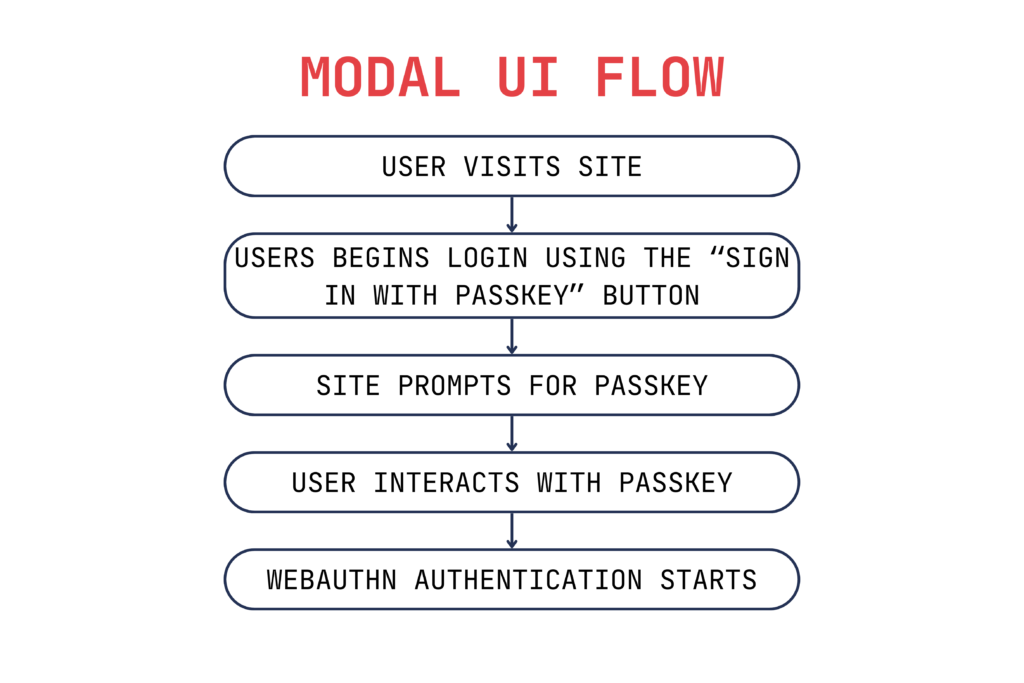
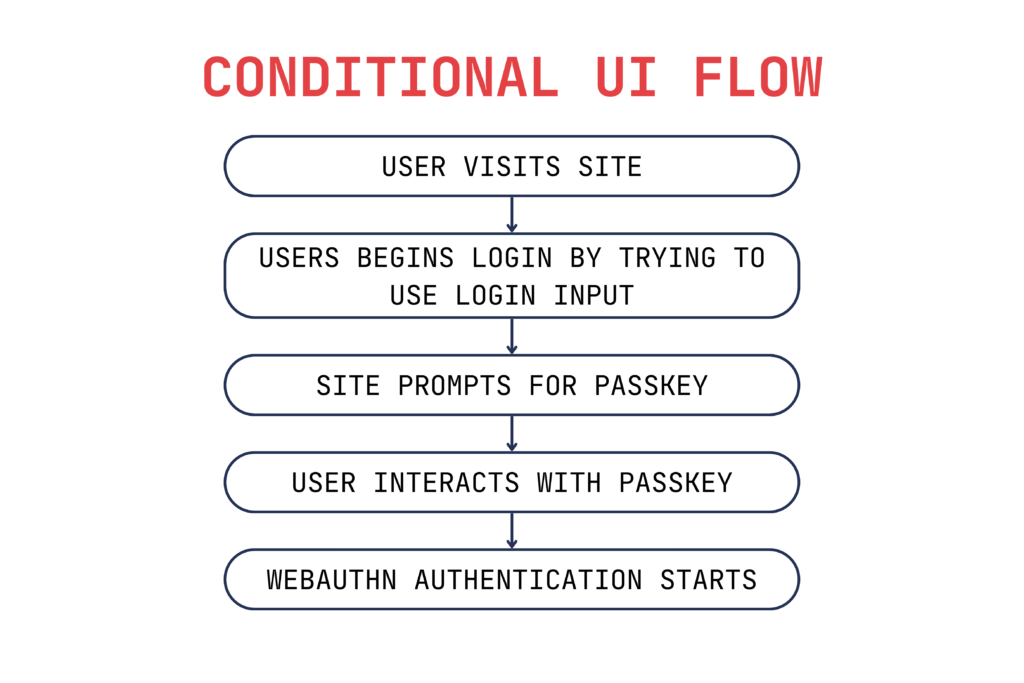
As you can see, the only thing that is different is the initial trigger – everything else remains the same.
Why use Conditional UI?
As with everything, there are both benefits and drawbacks.
Let’s start with the benefits:
- Seamless transition from a traditional password authentication to a more modern and more secure passkey authentication.
- Improved user comfort. No need for excessive clicks and keystrokes. The steps required for login are minimized.
- Nearly all web browsers support Conditional UI. You can check it using the isConditionalMediationAvailable() function.
- One step closer to a passwordless future. 😊
So, what are the drawbacks?
- If you are using a password manager web extension, it can hijack the autofill. This can interfere with Conditional UI flow and prolong the authentication process. If you don’t want that to happen, consider disabling autofill in the extension settings.
- Another thing to keep in mind is that hardware security keys may prompt the user to tap them or enter their PIN to enumerate their contents and fetch the appropriate passkey. If no passkey is found or the flow is interrupted, the user can use the modal UI flow (“Sign in with passkey” button) – which may further prolong the authentication process.
With that in mind, you should really start to consider using Conditional UI. But how would you implement this feature?
Connect with the IAM Expert on LinkedIn!

How to implement
First, enable passkey autofill. Simply add the autocomplete attribute in an input tag:
<input type="text" name="username"
autocomplete="username webauthn">
You can add the autofocus attribute to this input as well, so the field automatically triggers the autofill prompt on page load.
Next, check whether your web browser supports Conditional UI. After doing that, you can start the authentication process. Be sure to use the mediation: ‘conditional’ property. This will autofill available credentials.
The code should roughly look like that:
// Availability of window.PublicKeyCredential means WebAuthn is usable.
if (window.PublicKeyCredential && PublicKeyCredential.isConditionalMediationAvailable) {
	// Check if conditional mediation is available.
	const isCMA = await PublicKeyCredential.isConditionalMediationAvailable();
 	if (isCMA) {
		// Invoke WebAuthn to authenticate with a passkey.
		const credential = await navigator.credentials.get({
 			publicKey: options.publicKeyCredentialRequestOptions,
			signal: abortController.signal,
			// Specify 'conditional' to activate conditional UI
			mediation: 'conditional'
		});
	}
}
And that’s it! Simple and effective, isn’t it?
Conditional Create
There is also a new WebAuthn API feature called Conditional Create. It works very similarly to Conditional UI. Conditional Create allows for automatic passkey creation if the following two conditions are met:
- The user has a password-based account in your application.
- The user has recently used that password for authentication.
If the above conditions are met, you can call Conditional Create immediately after a user successfully logs in with their password. This will create a new passkey that will then be stored in the password manager. It all happens automatically, without extra user actions.
The often-discussed drawback (and a major difference between this and Conditional UI) is that the user is neither asked for consent nor given any warning when the Conditional Create flow occurs. The only action you can take is to disable automatic passkey creation in their password manager settings. However, I would advise against it, as passkeys represent a major upgrade in the security of your accounts. It’s just good to be aware of how this mechanism works.
DOM-based Extension Clickjacking
You might remember the DOM-based Extension Clickjacking research published this year by Marek Tóth, which describes a method of exploitation called “Signed Assertion Hijacking”.
You should keep in mind that this attack doesn’t exploit vulnerabilities in either passkeys or the Conditional UI flow, but rather in password managers – an attacker needs to find an XSS vulnerability on a server that uses passkeys.
Final thoughts
Should you implement Conditional UI (and Conditional Create) in your application? Absolutely.
- If you already have a working passkey authentication flow, adding autofill will not be time-consuming.
- If you don’t have a passkey flow in your application, you can implement Conditional UI at the same time.
Just remember: Conditional UI should complement, not replace, the modal UI (“Sign in with passkey” button). Always provide users with the option to manually log in with passkeys if they are storing them externally.
Is Conditional UI secure? Yes. Thanks to public-key cryptography, no credentials are exposed during autofill. The private key remains safely on the user’s device.
Use Conditional UI – it is just a faster way for users to authenticate using passkeys! 😊